
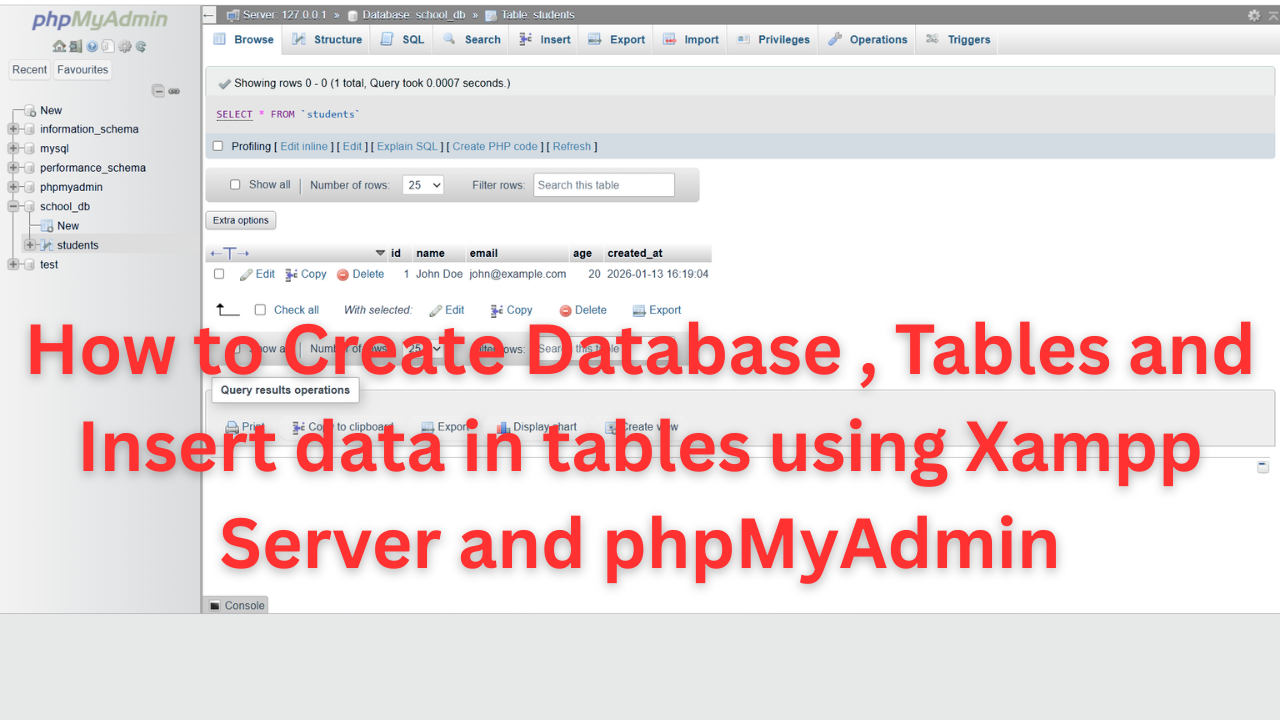
Here’s a clear, step-by-step guide to creating a database and tables using XAMPP and phpMyAdmin, perfect for beginners.
1. Install and Start XAMPP
- Download XAMPP from apachefriends.org
- Install it (default settings are fine)
- Open XAMPP Control Panel
- Start:
- Apache
- MySQL
When both turn green, XAMPP is running.
2. Open phpMyAdmin
Advertisement
- Open your browser
- Go to:
http://localhost/phpmyadmin
phpMyAdmin is the web interface for managing MySQL databases.
3. Create a Database
- In phpMyAdmin, click Databases (top menu)
- Under Create database:
- Enter a database name (example:
school_db) - Choose collation:
utf8mb4_general_ci
- Enter a database name (example:
- Click Create
Your database is now created.
4. Create Tables (Using UI Method)
- Click your database name (
school_db) on the left panel - Under Create table:
- Table name:
students - Number of columns:
5
- Table name:
- Click Go
Example Table Structure
| Column Name | Type | Length | Extra |
|---|---|---|---|
| id | INT | 11 | PRIMARY KEY, AUTO_INCREMENT |
| name | VARCHAR | 100 | |
| VARCHAR | 100 | UNIQUE | |
| age | INT | 3 | |
| created_at | TIMESTAMP |
- Click Save
Table created successfully!
5. Create Tables (Using SQL Query – Recommended)
- Select your database
- Click SQL
- Paste this example:
CREATE TABLE students (
    id INT(11) AUTO_INCREMENT PRIMARY KEY,
    name VARCHAR(100) NOT NULL,
    email VARCHAR(100) UNIQUE,
    age INT(3),
    created_at TIMESTAMP DEFAULT CURRENT_TIMESTAMP
);
- Click Go
Table created using SQL.
6. Insert Data into Table
Using SQL
INSERT INTO students (name, email, age)
VALUES ('John Doe', 'john@example.com', 20);
7. View Table Data
- Click your table (
students) - Select Browse
You’ll see the inserted records.
8. Common Errors & Fixes
| Problem | Solution |
|---|---|
| MySQL not starting | Close other MySQL services (e.g., MySQL Server) |
| phpMyAdmin error | Restart Apache & MySQL |
| Database not showing | Refresh phpMyAdmin |
9. Folder Location for PHP Files
Place your PHP files in:
C:\xampp\htdocs\
Access them via:
http://localhost/yourfile.php